llms.txt for Help Centers: An Example File, Line by Line
Your help center has a new kind of reader, and it doesn't use a browser.
The catch: AI assistants are often bad at reading help centers built for humans. Menus, cookie banners and scripts get in the way of the actual steps.
So what is llms.txt for a help center? It's one plain Markdown file at the root of your help center that lists your guides, with a short note on each, so an AI assistant can find the right page and read clean text instead of guessing.
In this post, we'll look at an example file line by line, then cover how to write and maintain your own.
What Is llms.txt, in Plain Words?
It's a proposed convention, documented at llmstxt.org. You put a Markdown file at /llms.txt. It says what the site is and links to the pages that matter most, ideally in a clean text format.
Think of it as a table of contents written for a machine that reads fast and skims badly.
One honest note before we start: it's a proposal, not a rule every AI tool follows. Some tools may read it, some won't. It won't guarantee you get cited anywhere. It's cheap to make, though, and it forces you to organise your docs (which helps humans too).
The Example File
Below is an example only. The product "Harbor" and the address help.example.com are made up for this post.
# Harbor Help Center

> Step-by-step guides for Harbor, a web app for small teams to manage shared inboxes. Each guide covers one task, with numbered steps and screenshots.

Guides are written for account owners and team members. Button names match the app exactly.

## Getting started

- [Create your workspace](https://help.example.com/create-workspace.md): Sign up, name the workspace and pick a time zone.
- [Invite a teammate](https://help.example.com/invite-teammate.md): Send an invite by email and choose a role.

## Inbox

- [Connect a shared inbox](https://help.example.com/connect-inbox.md): Forward an existing address into Harbor.
- [Assign a conversation](https://help.example.com/assign-conversation.md): Give a conversation to one teammate.

## Billing

- [Download an invoice](https://help.example.com/download-invoice.md): Find past invoices as PDFs. Owners only.

## Optional

- [Keyboard shortcuts](https://help.example.com/keyboard-shortcuts.md): Full list of shortcuts.
Line by Line
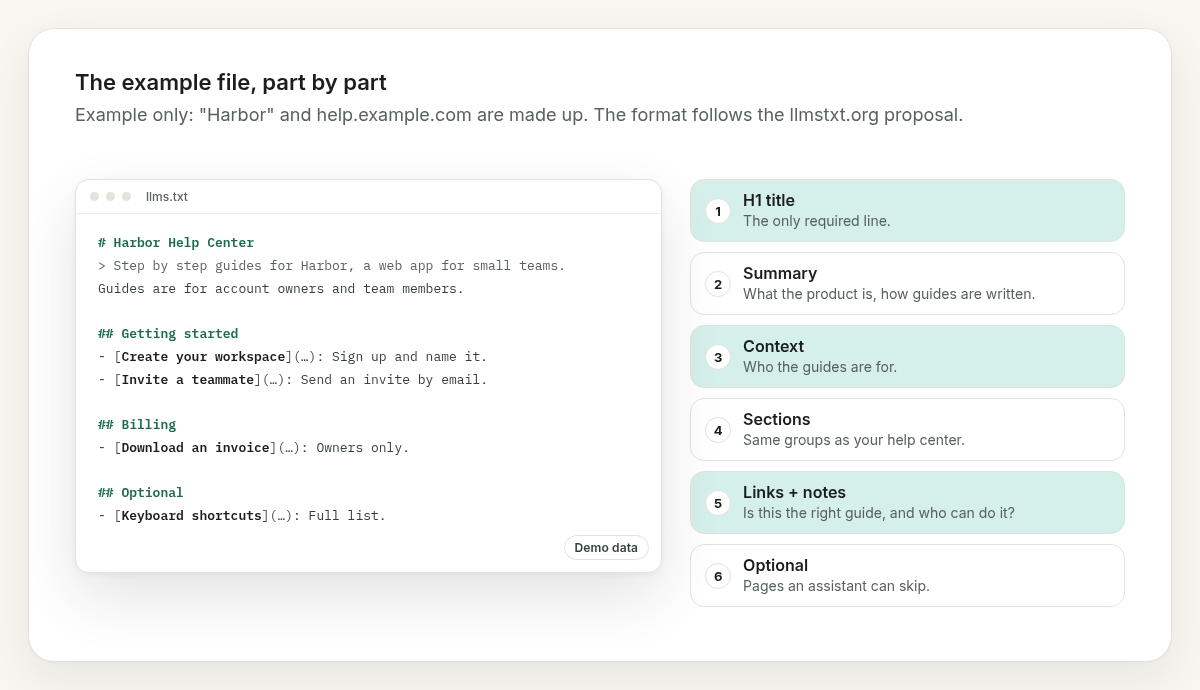
So what is each part doing?
1. The H1 Title
# Harbor Help Center is the only required line in the proposal. Use the name people actually call your product.
2. The Summary Block
The line starting with > is a short summary. It tells the assistant what the product is and how the guides are written.
For example, "Each guide covers one task" sets the expectation that the assistant should pick one link per question, not stitch five together.
3. The Context Paragraph
Plain text after the summary adds anything the reader needs before using the links. Who the guides are for. Whether button names match the app.
Keep it short. This isn't the place for your brand story (sorry, marketing).
4. The Sections
Each ## heading groups related guides. Use the same groups your help center already uses, so humans and machines see the same structure.
5. The Links
Each line is a Markdown link plus a colon and a one-line note.
For example, "Download an invoice: Find past invoices as PDFs. Owners only." The note answers the question an assistant would otherwise have to open the page to check: is this the right guide, and who can do it?
Point links at a clean text version of each guide if you have one (here, .md files). If you don't, the normal page URL is fine.
6. The Optional Section
## Optional is for pages an assistant can skip if it's short on space. Reference material goes here, not your core tasks.
How to Write Your Own
Where do you start?
- List your top tasks. The ten questions your support team answers most.
- Make sure each has one guide. One task per guide. If a guide covers three tasks, split it.
- Write one honest note per link. What it does and who it's for. No marketing words.
- Group them. Reuse your help center's existing categories.
- Publish at the root.
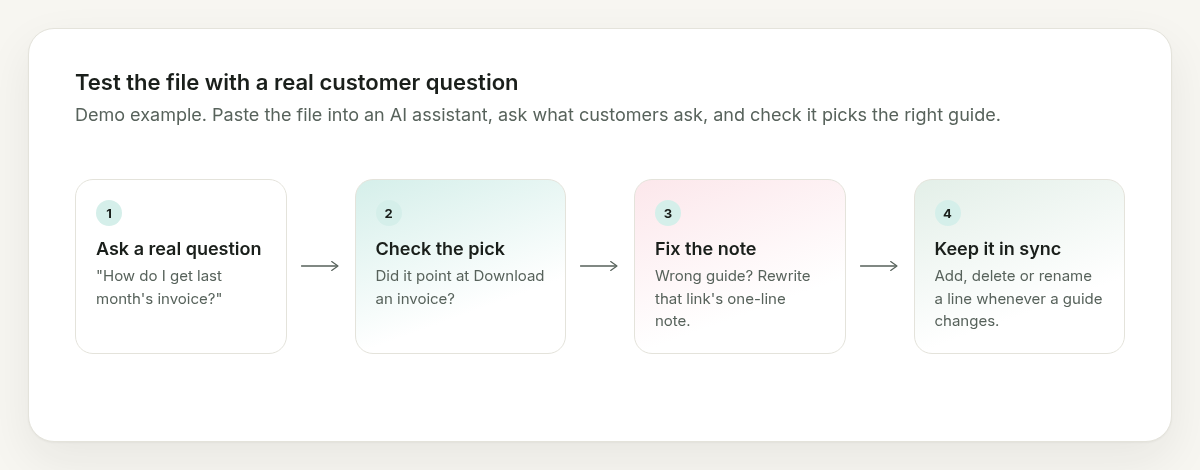
help.yourdomain.com/llms.txt. - Test it. Paste the file into an AI assistant and ask it a few real customer questions. Check it picks the right guide.
For example, ask "how do I get last month's invoice?" If the assistant points at the inbox guide, your notes need work.
Keeping It Honest
An llms.txt file rots like any other doc.
When you add a guide, add a line. When you delete a guide, delete the line. When a guide is renamed, rename the link.
I'll admit this is the kind of file that's easy to set up once and forget. Put it on the same checklist as your release notes and it stays current.
The Wrap-Up
llms.txt is a small file with a simple job: point machines at your clearest answers.
Write it like a good table of contents. Keep it in sync with your guides.
Clear docs in, better answers out.
Written by the Asterly team.